Using content › Live preview
Introduction
Content
Using content
Plugins
Operations
Recipes
Live preview
What you'll learn
Show editors the real page next to the form, updated as they type, before saving.
Before this page: Drafts, versions & scheduling.
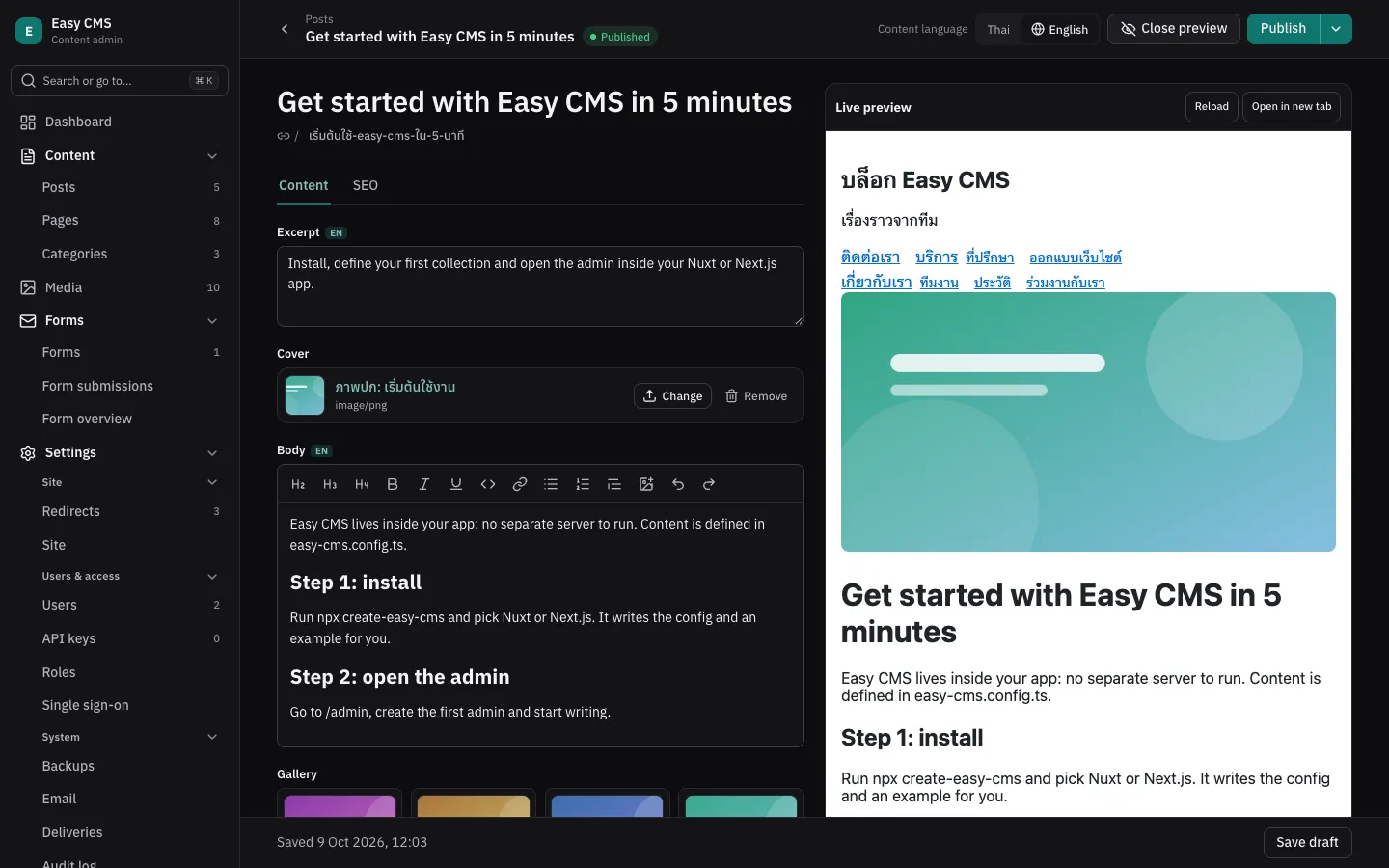
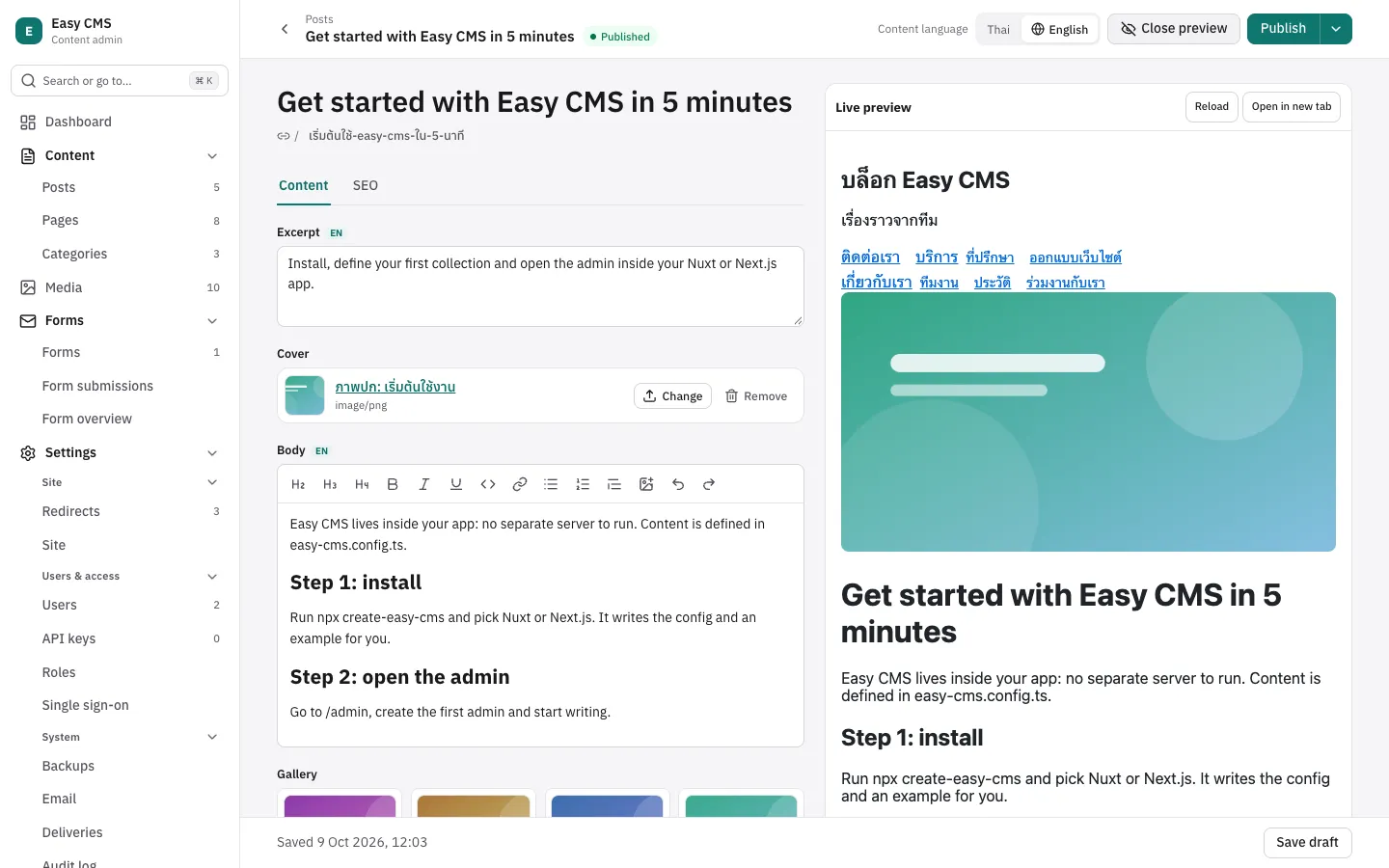
Editors see the real page next to the form, updated as they type, before anything is saved.
{
  slug: 'posts',
  preview: ({ doc }) => (doc.slug ? `/posts/${doc.slug}` : null),
  fields: [/* … */],
}
preview returns the page that shows a document: a path on the site or an absolute URL, or
null when it has no page. Globals take the same option. The admin then shows a Preview
button; the page opens in a frame beside the form.
How it works
- The admin loads the page from
previewonce. - On every change it sends the form to the server (
POST /:collection/:id/preview), which returns the document as a normal read would: relationships and uploads populated,afterReadhooks applied. Nothing is saved. - The admin posts that document to the page with
postMessage; the page renders it.
So the page has to render from the document it receives. The helpers below do the wiring.
Nuxt
useLivePreview is auto-imported. Give it the ref that holds the document:
<script setup lang="ts">
import { renderRichText } from '@easy-cms/richtext'

const { data: post } = await useFetch(`/api/posts/${useRoute().params.slug}`)
useLivePreview(post)
const html = computed(() => renderRichText(post.value?.body))
</script>
Next.js
Load in a Server Component, render in a Client Component with useLivePreview:
'use client'
import { useLivePreview } from '@easy-cms/next/live-preview'

export function PostView({ post: initial }: { post: Post }) {
  const post = useLivePreview(initial)
  return <h1>{post.title}</h1>
}
Any frontend
import { subscribeLivePreview } from '@easy-cms/core/live-preview'

const stop = subscribeLivePreview((doc) => render(doc), {
  origin: 'https://cms.example.com', // the admin's origin; default: the page's own
})
Outside the admin's frame the helpers do nothing, so they can stay in production code.
Preview tokens
When the admin opens the preview, it adds easy-cms-preview=<token> to the URL. The token opens
one document's current draft (or one global) for an hour, without a login, so a frontend on
another origin can show drafts that were never published:
import { getPreviewToken } from '@easy-cms/core/live-preview'

const token = getPreviewToken() // from ?easy-cms-preview=, or null
const post = await fetch(
  `${api}/posts/${id}?depth=2${token ? `&preview=${token}` : ''}`,
).then((r) => r.json())
Put the document id in the preview URL for this, e.g.
preview: ({ doc }) => \https://www.example.com/preview/posts/${doc.id}\``.
On the server, cms.verifyPreviewToken(token) returns what a token opens
({ collection, id } or { global }) or null, and cms.createPreviewToken({ collection, id })
creates one, e.g. for a "share preview link" button.
A token from the admin reads with the access of whoever opened the preview: fields they may
not read are left out, and their links stop working when the user is deactivated. Pass
{ user } to createPreviewToken for the same; without it, the token reads with full access.
Things to know
- Render rich text on the client too (
renderRichTextfrom@easy-cms/richtextworks in the browser), since the document carries the rich text JSON. - With the Nuxt and Next adapters, the page and the admin share an origin and the editor's session, so a page that reads drafts for logged-in users (as the examples do) needs no token.
- A preview token only opens the document it was made for, expires after an hour, and is refused when tampered with. Treat preview URLs like a temporary share link.
- Only users who may update a document (or create one, for new documents) can preview it.
- The panel names the site it opens. When the page hasn't said it is ready after ten seconds, the
panel says so: an empty panel means the site isn't running or
previewpoints elsewhere; a page that doesn't follow your edits needs live preview added (see above). A draft that was never published previews like any other document.
Next steps
- Localization: preview each language.
- SEO: preview search results too.