Plugins › The admin: menu, search, layouts
Introduction
Content
Using content
Plugins
Operations
Recipes
The admin
What you'll learn
How to shape the admin for your editors: the menu's groups, badges and pins, the command palette (⌘K) and shortcuts, and edit pages with tabs, sections that fold, rows and fields that show only when they apply.
Before this page: Configuration and Fields.
Everything here is set in the config: the admin needs no setup of its own. Each person can still fold groups, pin items and collapse the menu; those choices stay in their browser.
The menu
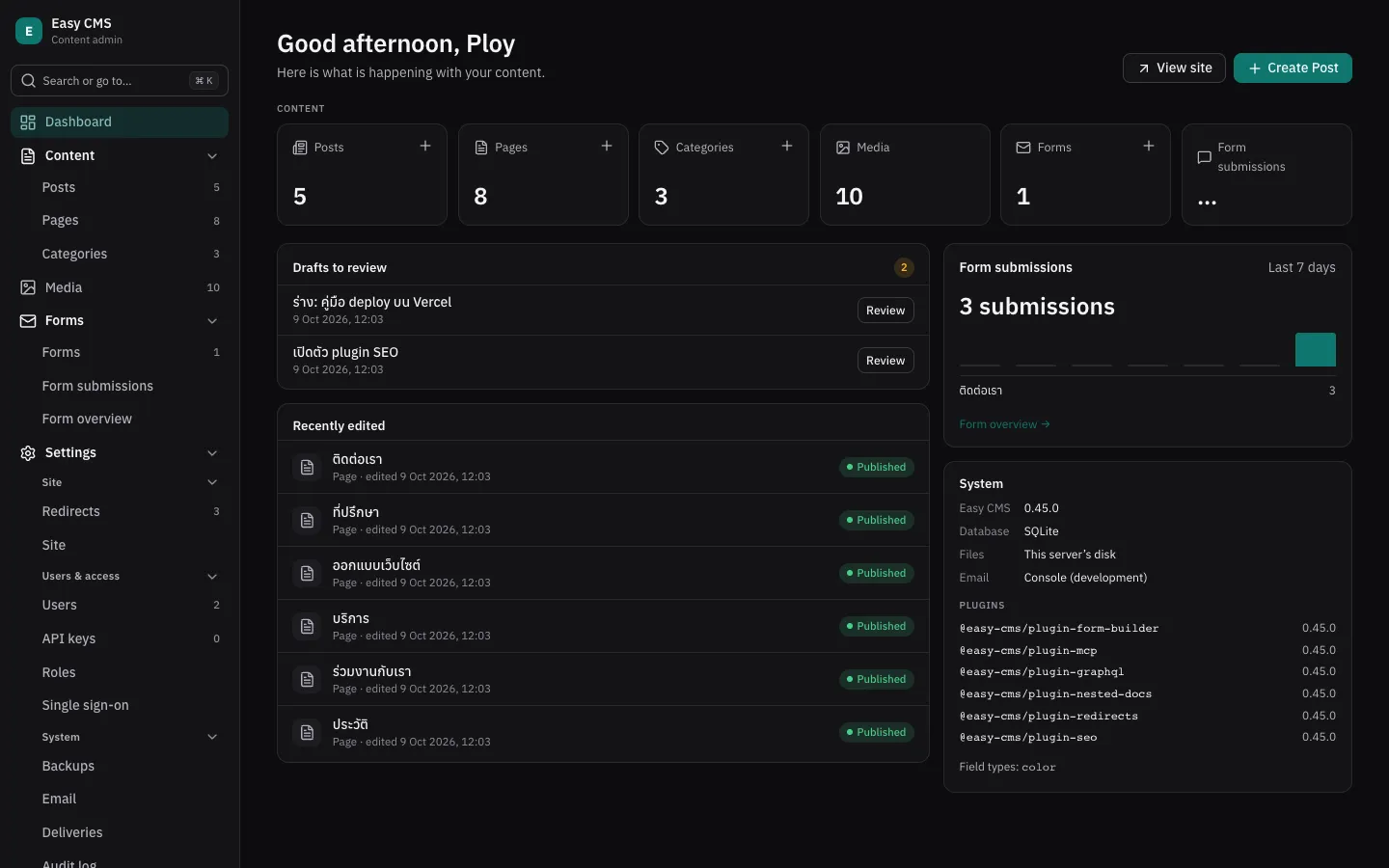
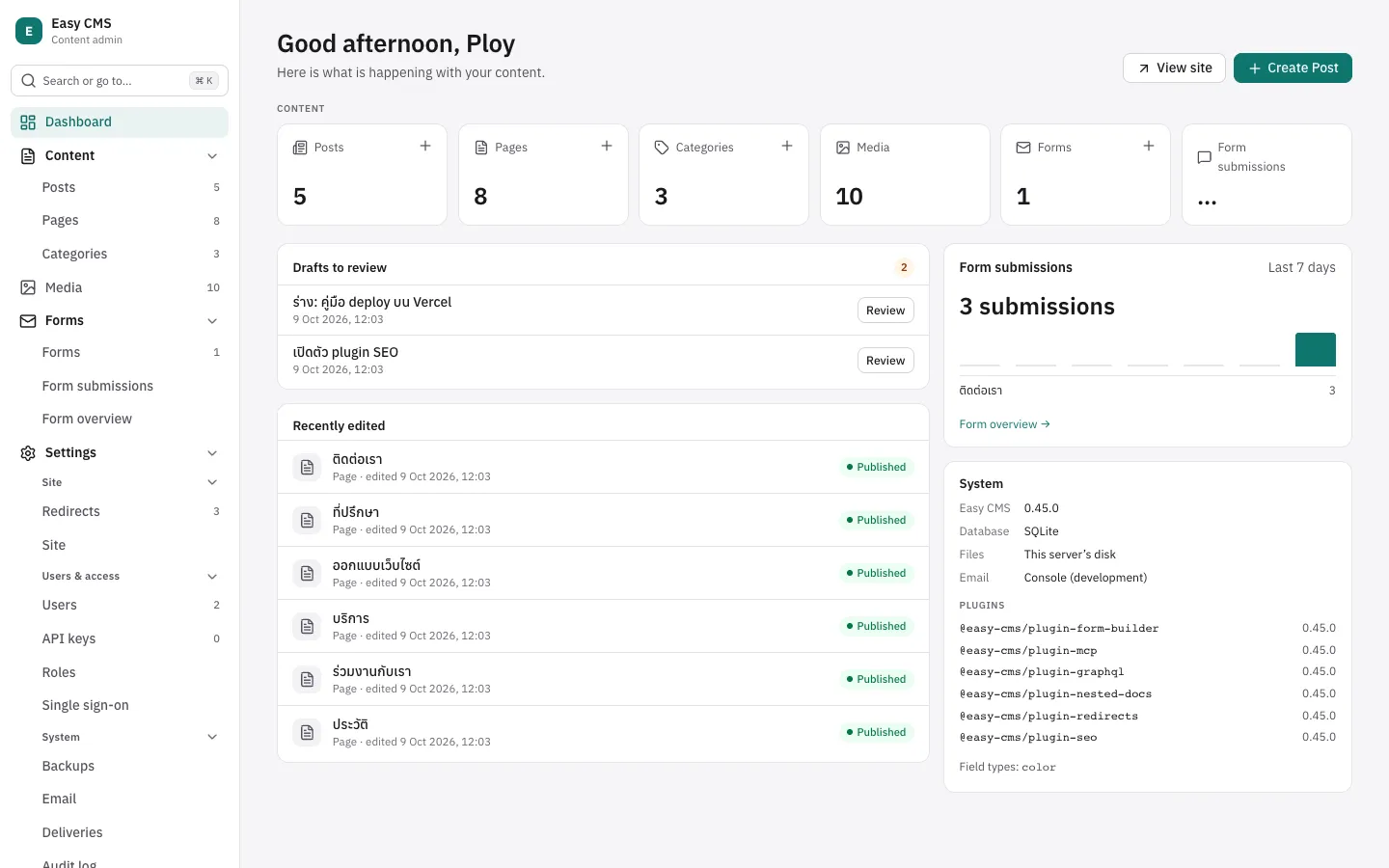
The menu has groups that fold, two levels deep:
Dashboard
Content          posts, pages… (collections without a group)
Media library
Shop             a group of a plugin, e.g. the shop's
  Catalog          products, variants…
  Sales            orders, payments…
Settings
  Site             globals, redirects
  Users & access   users, roles, API keys, single sign-on
  System           backups, email, deliveries, jobs, audit log
Collections, globals and pages name their group in admin.group; groups of your own are declared
in admin.nav:
export default defineConfig({
  admin: {
    nav: [
      {
        id: 'library',
        label: { en: 'Library', th: 'ห้องสมุด' },
        icon: 'book-open',
        children: [{ id: 'authors', label: { en: 'Authors', th: 'ผู้เขียน' } }],
      },
    ],
  },
  collections: [
    { slug: 'books', admin: { group: 'library' }, fields: [/* … */] },
    { slug: 'people', admin: { group: 'library.authors' }, fields: [/* … */] },
  ],
  globals: [{ slug: 'footer', admin: { group: 'content' }, fields: [/* … */] }],
})- Without
group, a collection is under Content and a global under Settings › Site.group: 'settings'also means Settings › Site. - A label instead of an id (
group: 'Library') makes a group of that name, as before. group: falseleaves a collection, global or page out of the menu; links still reach it.orderplaces a group: Content is 0, the media library 10, plugins' groups about 100–200, Settings 1000. Within a group,admin.orderon a collection, global or page places it (lower first); those without one come after, in config order.- Declaring a group a plugin or Easy CMS has (
{ id: 'shop', label: 'Store' }, orcontent) changes its label, icon or order. - People only see what they may open, and groups with nothing in them are left out.
Numbers and badges
Each collection shows how many documents it has; admin.count: false hides it. A badge shows
what needs attention instead, counted for each user from what they may read:
{
  slug: 'orders',
  admin: {
    badge: { where: { status: { equals: 'paid' } }, label: { en: 'to send', th: 'รอจัดส่ง' } },
  },
}
A folded group shows the sum of its badges. tone is accent (default), warning or danger.
What each person changes
- Folding: groups stay as they were left; the group of the open page always unfolds.
- Pins: the pin button beside a collection's title puts it at the top of the menu.
- Collapse: on wide screens the menu becomes icons (the button at its foot, or
[); a group's icon opens its items beside it. - Create: hover an item (or tab to it) for a + that creates a document there.
Arrow keys move through the menu; left and right fold and unfold groups.
Search and commands (⌘K)
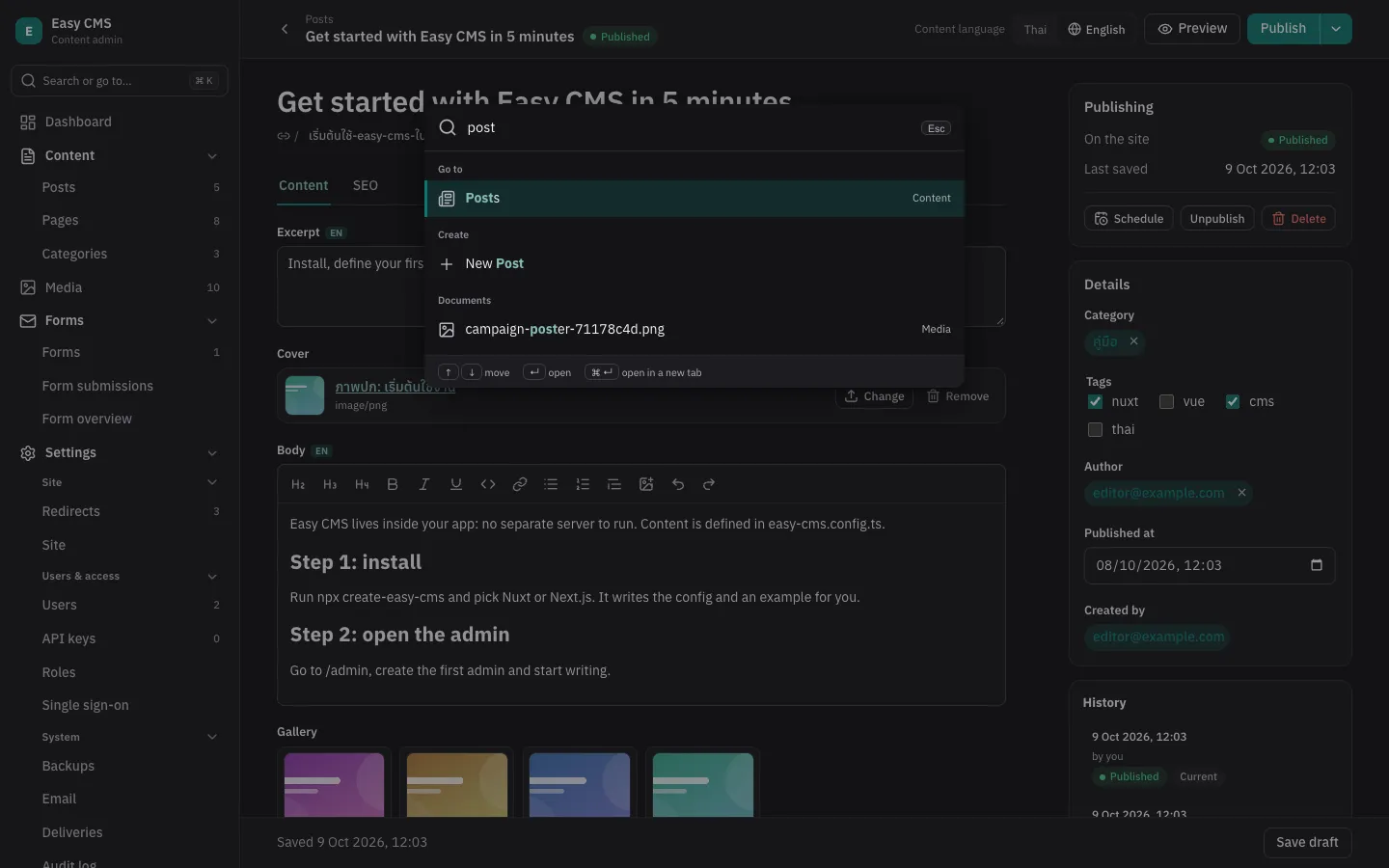
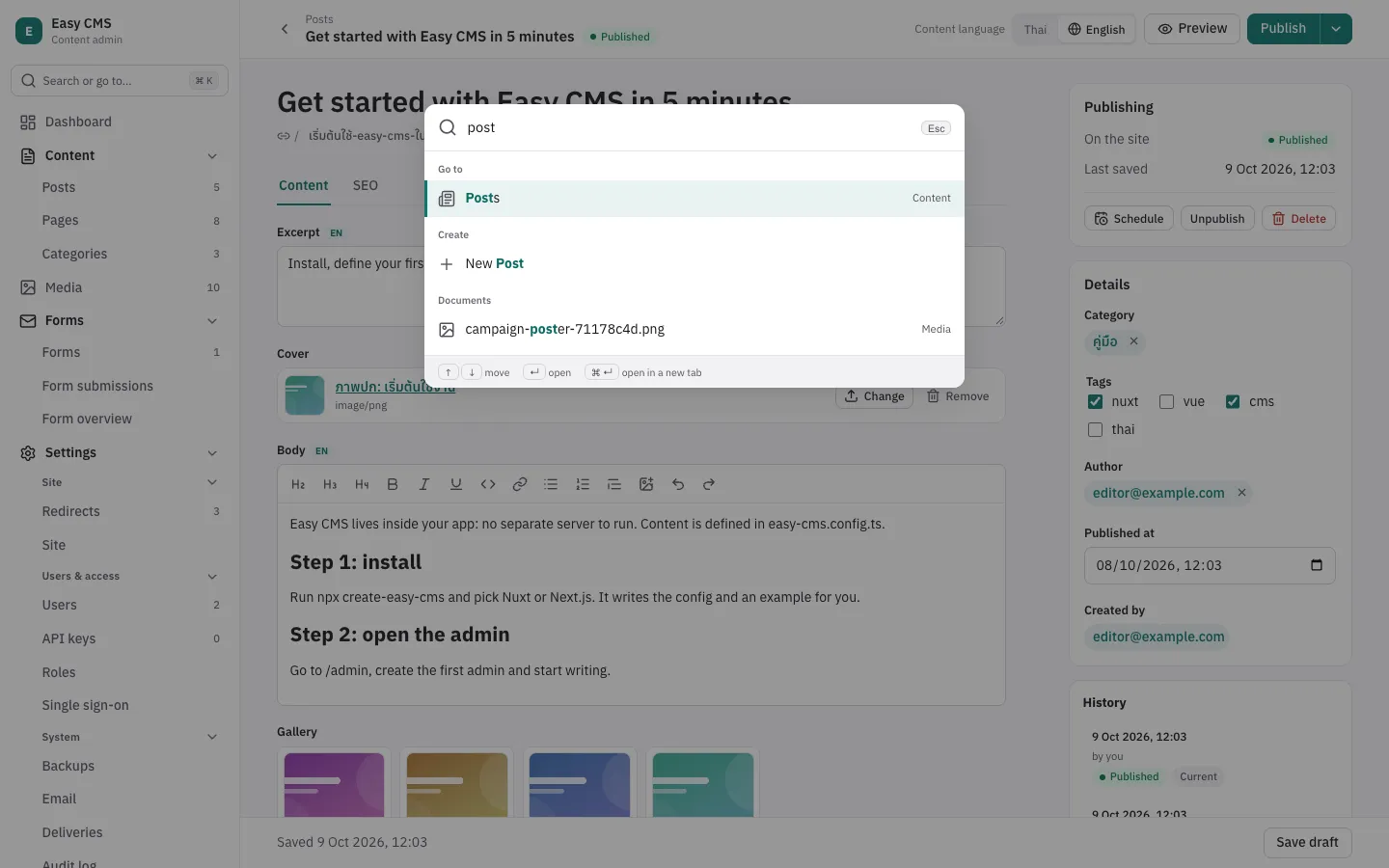
⌘K (Ctrl+K), / or the search box at the top of the menu opens the command palette:
- Go to any collection, global, page or setting, by name or group.
- Create a document of any collection you may create in.
- Documents: titles in every collection you may read and ids.
- Recently opened documents, before you type.
- Commands: theme, language, collapsing the menu, shortcuts, logging out, and your own:
admin: {
  commands: [{ label: 'Drafts to review', href: '/collections/posts?status=draft', icon: 'file-text' }],
}| Shortcut | |
|---|---|
⌘K, / | Search and commands |
⌘S | Save (without publishing a draft, or taking a page off the site) |
⌘⇧P | Publish |
[ | Collapse or expand the menu |
g then d | The dashboard |
? | All shortcuts |
Edit pages
admin.layout arranges the edit page by field name: tabs, sections that fold, and rows. It only
changes how the page looks; the data stays as the fields say.
{
  slug: 'products',
  admin: {
    layout: [
      { tab: 'Product', fields: ['title', 'slug', { row: ['brand', 'category'] }, 'description'] },
      {
        tab: 'Shipping',
        fields: [
          { row: ['weight', 'width', 'height'] },
          { collapsible: 'Customs', collapsed: true, fields: ['hsCode', 'origin'] },
        ],
      },
    ],
  },
  fields: [
    { name: 'title', type: 'text' },
    { name: 'brand', type: 'text', admin: { width: '1/3' } },
    { name: 'category', type: 'relationship', to: 'categories', admin: { width: '2/3' } },
    { name: 'hsCode', type: 'text', admin: { description: 'The customs tariff code' } },
    // …
  ],
}- Top-level fields, each placed once. Fields not placed follow at the end, in the first tab;
fields with
admin: { position: 'sidebar' }stay in the side column. - With tabs, every entry at the top is a tab. A tab shows how many of its fields have errors.
rowputs fields side by side, an equal share each or theiradmin.width('1/4'…'full'); on narrow screens they stack.collapsiblesections fold;collapsed: truestarts folded.admin.descriptionon a field adds help below it.- The SEO plugin puts its fields in an SEO tab of their own (
tab: falseto keep them below the other fields).
Conditions
admin.condition shows a field only when the fields beside it match:
fields: [
  { name: 'linkType', type: 'select', options: ['internal', 'external'] },
  { name: 'page', type: 'relationship', to: 'pages', admin: { condition: { field: 'linkType', equals: 'internal' } } },
  {
    name: 'url',
    type: 'text',
    required: true,
    admin: { condition: { field: 'linkType', equals: 'external' } },
  },
]equals, not_equals, in: [...], not_in: [...] and exists: true | false (named as in
where), combined with and, or and not.
field names a sibling (in a group or an array row, the fields beside it), or a path inside one
(link.type). The server reads the same condition: a hidden field isn't required, and keeps its
value.
Saving
- A save that fails lists every field to fix at the top of the form, opens the tab or section of the first, and moves focus there.
- Unsaved changes are kept in the browser while you type; opening the document again offers them back.
⌘Ssaves,⌘⇧Ppublishes.
The side column
Plugins' panels (admin.sidebar) come below the side fields; position: 'top' puts one right
below publishing, e.g. an order's actions:
admin: { sidebar: [{ tag: 'ecms-order-actions', position: 'top' }] }Lists
- Going back from a document returns to the list as it was: search, filters, page and scroll.
admin.emptysays what a collection is for before it has documents:
admin: {
  empty: {
    description: 'Add the first product: a name, a price, then publish it.',
    link: { label: 'Shop guide', href: 'https://example.com/docs/shop' },
  },
}
Filters
Filter opens a panel of conditions, all of which a document must meet: a title that contains a word, a number between two values, a day before, after, on or between dates, a select option or a related document that is any of several, a field that is empty. Each condition shows above the list as a chip: click it to change the conditions, × to remove it.
- Days are whole days in
timeZone(see Configuration), wherever the admin is opened. Today, Last 7 days and Last 30 days fill in the day when chosen. - The conditions are in the address, in the form the REST API reads, so a link
shows the same list to anyone who opens it:
/admin/collections/posts?where[and][0][category][in]=3&where[and][1][publishedAt][gte]=…. Older links (?status=draft,?f_form=3) still work. - The status menu, Mine and the menus of up to three select fields add their condition to the others.
- Fields in an array or blocks, rich text and JSON aren't offered. To leave out another field, set
admin: { filter: false }on it. - On a large collection, give a field people filter by often an index (
index: true).
Calendar
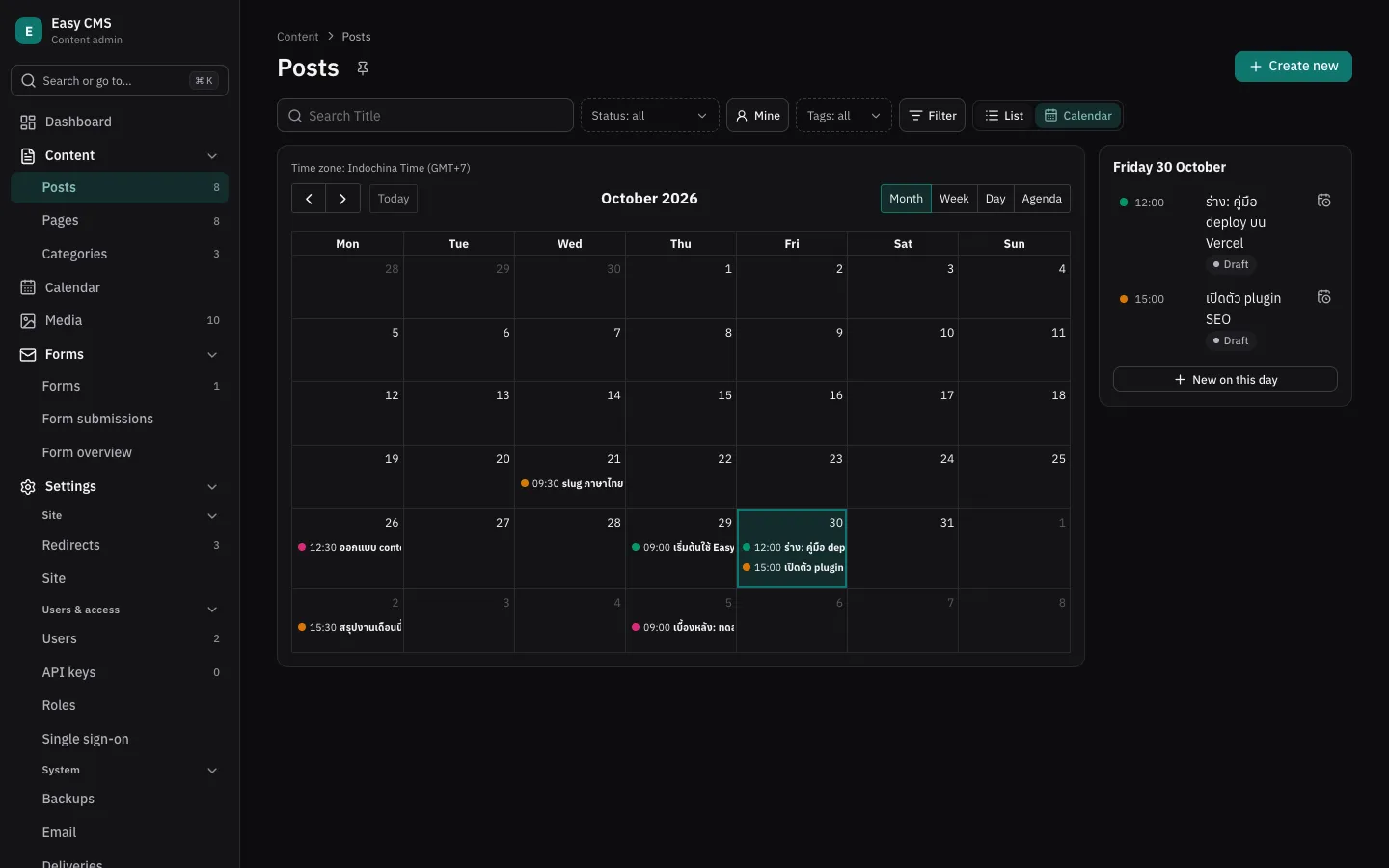
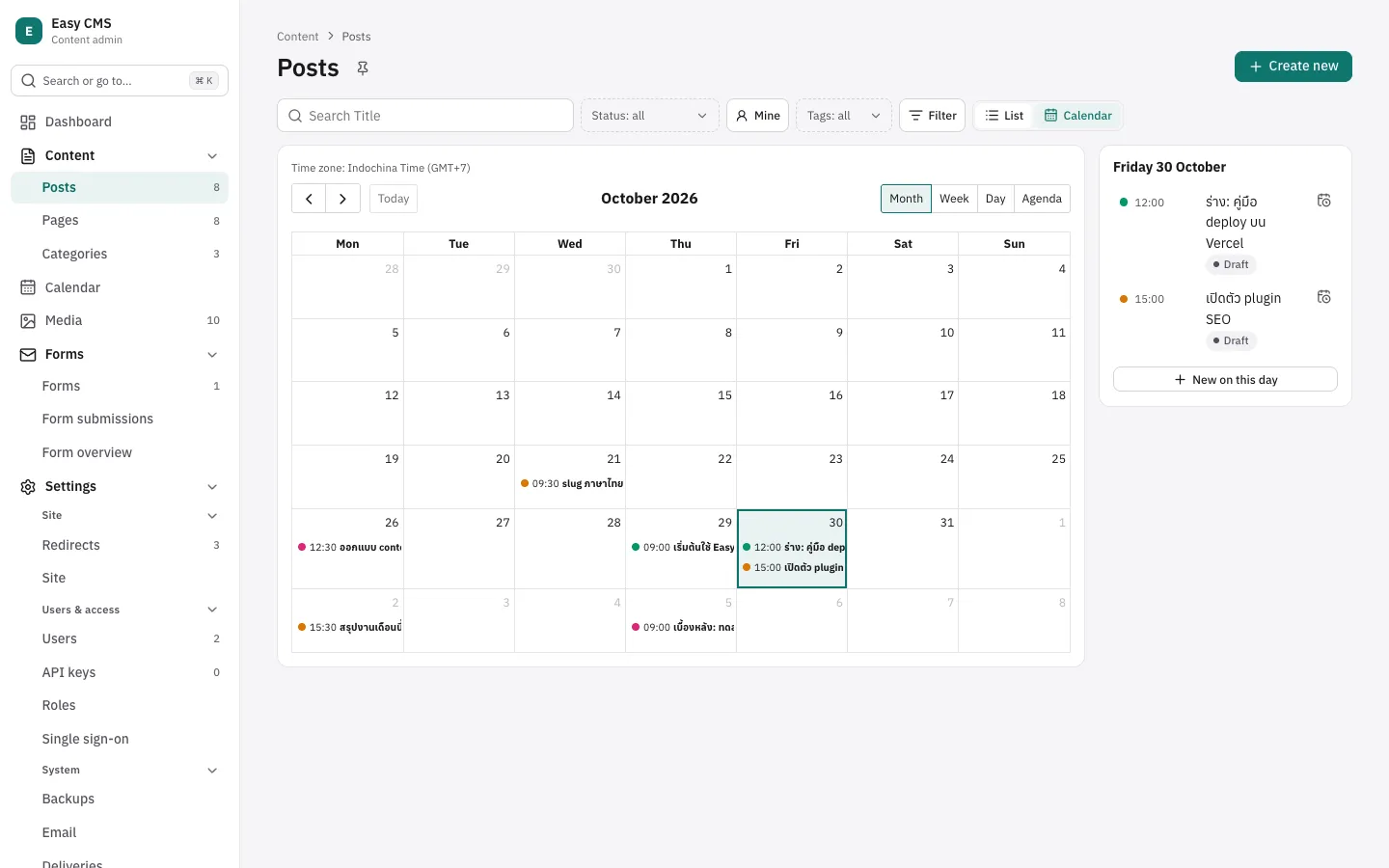
A collection with admin.calendar gets a List | Calendar switch above its list:
admin: {
  calendar: { start: 'startsAt', end: 'endsAt', color: 'category' },
}- Month, week, day and agenda views, in the admin's time zone (named above the calendar). The view and the day shown are in the address, so a link opens the same calendar.
- The list's filters and search apply. A range with more than 500 documents shows the first 500 and asks to filter more.
- Click a document to open it. Click a day (or its number, from the keyboard) to see it in the card
beside the calendar: its documents by time, whole days first, with their status. New on this
day there creates one starting then, as does selecting time in the week or day view (with
drafts, as a draft). The day picked is in the address too (&day=). - A document starting at midnight with no end (or ending at midnight) fills whole days. Without
end, the others take an hour. colorgives each value of a select or relationship field its own colour.- Drag a document to another day or time, or the end of one in the week and day views (with
end). Move to… in the day card does the same from the keyboard, keeping its length. A message offers Undo for 8 seconds; a save the server refuses puts it back with the reason. It saves like the edit page: with drafts and versions, a document that has a pending draft moves in that draft, and the site changes when it is published. Moving needs permission to update.
The calendar loads only when someone opens it.
The Calendar page
When a collection has admin.calendar or schedule, the menu gets Calendar, right after
Content. It shows every such collection's documents, each in its own colour, and what is scheduled
to publish or unpublish (outlined), across the site. The Show card beside it hides some of
them (remembered in each person's browser); the day card lists the day picked, today at first.
Dragging a scheduled publish (or Move to…) schedules it again for the new time, for those
who may publish. Clicking opens the document; to create one from a date, use the
collection's own Calendar mode.
Everyone signed in sees it, with only what they may read (scheduled publishes: what they may
edit). With auth.rbac, roles get it in Settings → Roles (calendar); admins always do.
Time zone
With timeZone in the config (see Configuration), the admin shows every date
and time in it, and date inputs, scheduled publishing and the list's day filters read what people
type in it too. A post scheduled for 09:00 is 09:00 for everyone, wherever their browser is. Someone
in another zone sees it named next to date inputs ("Time zone: Indochina Time (GMT+7)"). Without
timeZone, the admin uses each browser's zone.