Operations › Backups & upgrades
Introduction
Content
Using content
Plugins
Operations
Recipes
Backups & upgrades
What you'll learn
What to back up, how to restore, and how to upgrade Easy CMS safely.
Before this page: Migrations & deployment.
Easy CMS keeps everything in two places: the database (documents, users, versions, scheduled
jobs, queued webhooks and the migrations table) and the uploads (local upload.dir or your
S3 bucket). Back up both. The database can be backed up from the admin, on a
schedule; uploads are yours to back up.
What to back up
| What | Where | How often |
|---|---|---|
| Database | SQLite file or Postgres database | Daily, and before every deploy that runs migrations |
| Uploads | uploads/ (or upload.dir), or the S3 bucket | Daily; turn on bucket versioning for S3 |
EASY_CMS_SECRET | Your host's secret settings | Once, kept in a password manager |
backups.encryptionKey | Your host's secret settings | Once, kept somewhere other than the backups |
easy-cms/migrations | Git | Already there when you commit them |
Losing EASY_CMS_SECRET loses no content: it signs sessions and preview links, not passwords.
Setting a new one signs everyone out and invalidates preview links.
From the admin
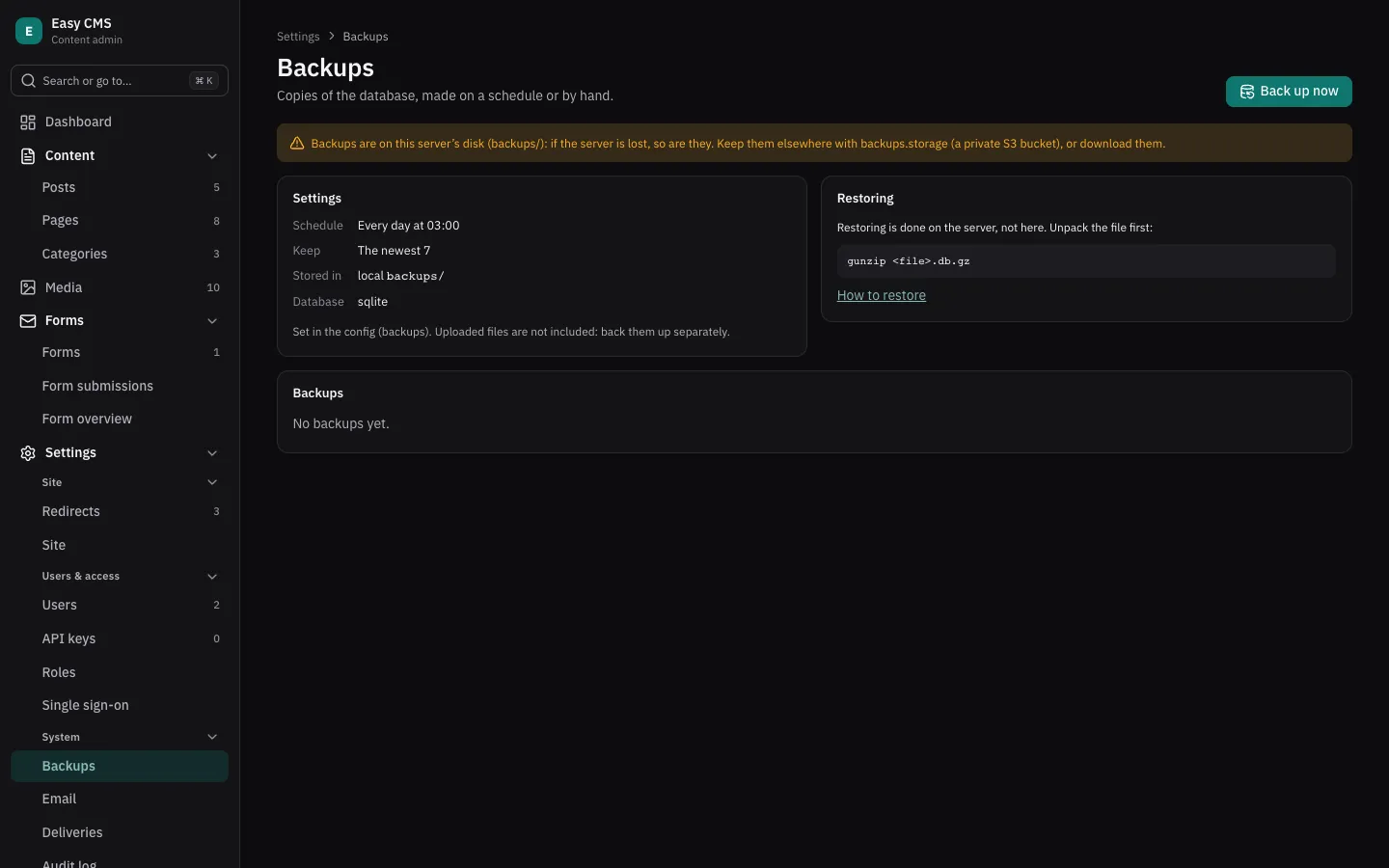
Admins find Settings → Backups in the admin: Back up now, the list of backups with who made them, Download and Delete. Scheduled backups and how many to keep are set in the config:
import { sqlite } from '@easy-cms/db-sqlite'

backups: {
  frequency: 'daily',   // or 'weekly'; leave out for backups by hand only
  at: '03:00',           // in `timeZone` (the server's by default; see Jobs)
  keep: 7,               // older ones are deleted
  // dir: 'backups',     // default; never served publicly
  // storage: s3Storage({ bucket: 'my-private-backups' }), // instead of the server's disk
  // encryptionKey: process.env.EASY_CMS_BACKUP_KEY,       // encrypt the files: see below
  // sqlite,             // Postgres only: see below
},- Each backup is one compressed SQLite file (
<site>-YYYY-MM-DD-HHmm.db.gz) of the whole database: documents, users, versions, settings. SQLite copies itself; Postgres is copied into a SQLite file, so passsqlitefrom@easy-cms/db-sqliteasbackups.sqlite(install the package). For a large Postgres database, keep your provider's backups orpg_dumptoo. - Uploaded files are not included: back up the uploads folder, or turn on versioning for the S3 bucket.
- Where they're kept:
backups/on the server's disk by default, which is lost with the server (and on serverless hosts, with every deploy). Setbackups.storageto a private bucket, or download them. Never use the uploads folder or a public bucket: a backup holds password hashes and API key hashes. Abackups.storagethat gives public URLs (e.g. S3 withpublicURL) logs a warning at startup.create-easy-cmsaddsbackups/to.gitignore. - Encryption: with
backups.encryptionKey(at least 32 characters, e.g.process.env.EASY_CMS_BACKUP_KEY), each file is encrypted with AES-256-GCM and named….db.gz.enc, so a leaked bucket or disk holds nothing readable. Downloads from the admin are decrypted. Keep a copy of the key somewhere other than the backups: without it they can't be restored. - Scheduled backups run with scheduled jobs: every minute on a
long-running server, or from your cron calling
<api>/jobs/run. One runs at a time; one a process stopped in the middle is finished by the next run. The dashboard tells admins when the last scheduled backup failed, or when none finished in two periods. - Downloads go through the server, for admins only, and the list shows who downloaded each backup last. Keep downloaded files as safe as the database.
- Upgrading to Easy CMS 0.32 adds the
database-backupstable: create a migration (npx easy-cms migrate:create backups).
Restoring a backup from the admin
Restoring is done on the server, not in the admin. Unpack the file first:
gunzip my-site-2026-10-04-0300.db.gzAn encrypted file taken straight from the storage (.db.gz.enc) is decrypted first with
easy-cms backup:decrypt, which uses the key from the config:
npx easy-cms backup:decrypt my-site-2026-10-04-0300.db.gz.encpnpm exec easy-cms backup:decrypt my-site-2026-10-04-0300.db.gz.encyarn easy-cms backup:decrypt my-site-2026-10-04-0300.db.gz.encbunx easy-cms backup:decrypt my-site-2026-10-04-0300.db.gz.enc- SQLite: stop the server, replace
cms.dbwith the unpacked file (deletecms.db-walandcms.db-shmif they exist), start the server. - Postgres: copy the file into an empty database with
easy-cms copy, as in moving from SQLite to Postgres: a config whosedbissqlite({ url: 'file:./my-site-2026-10-04-0300.db' })is the source.
SQLite
The database runs in WAL mode, so copying cms.db while the server runs can give a broken copy.
Use easy-cms backup instead: it reads your config and writes a consistent copy while the CMS
keeps running.
npx easy-cms backup backups/cms-$(date +%F).dbpnpm exec easy-cms backup backups/cms-$(date +%F).dbyarn easy-cms backup backups/cms-$(date +%F).dbbunx easy-cms backup backups/cms-$(date +%F).dbThe sqlite3 command does the same: sqlite3 cms.db ".backup 'backups/cms.db'".
Restore: stop the server, replace cms.db with the backup and delete cms.db-wal and
cms.db-shm if they exist, then start the server.
Postgres
pg_dump --format=custom --file=cms-$(date +%F).dump "$DATABASE_URL"If the database is shared with other apps, limit the dump to Easy CMS's tables with their prefix
(tablePrefix, default ecms_): pg_dump -t 'ecms_*' …. Managed Postgres (Neon, Supabase, RDS…)
usually has point-in-time recovery; turn it on as well.
Restore: stop the server, then
pg_restore --clean --if-exists --no-owner --dbname="$DATABASE_URL" cms-2026-10-01.dumpAfter a restore
The backup includes the migrations table, so the database is at the schema of the day it was
taken. Start the version of your app that matches it, or deploy the current one and run
easy-cms migrate to apply the migrations made since. A production server refuses to start when
they don't match, so a mismatch shows up at once rather than as broken data.
Test a restore now and then: restore into a scratch database, start the app against it and open the admin. A backup that has never been restored is a guess.
Upgrading Easy CMS
All @easy-cms/* packages, easy-cms and create-easy-cms share one version number: upgrade
them together.
- Read what changed in between: Upgrading (from 0.x to 1.0, and release by
release), or the changelog (
packages/core/CHANGELOG.mdon GitHub). - Upgrade every package to the same version:
npm install @easy-cms/core@latest @easy-cms/nuxt@latest @easy-cms/db-sqlite@latest easy-cms@latestpnpm add @easy-cms/core@latest @easy-cms/nuxt@latest @easy-cms/db-sqlite@latest easy-cms@latestyarn add @easy-cms/core@latest @easy-cms/nuxt@latest @easy-cms/db-sqlite@latest easy-cms@latestbun add @easy-cms/core@latest @easy-cms/nuxt@latest @easy-cms/db-sqlite@latest easy-cms@latest- Run
npx easy-cms migrate:create upgrade. A release sometimes adds internal tables (0.7 addedwebhook-deliveries); if it does, you get a migration to review and commit, and without it production refuses to start. - Try it against a copy of production data (a restored backup) before deploying.
- Deploy as usual: back up,
easy-cms migrate, start the new version.
Rolling back: migrations only go forward. To go back to the previous version, restore the backup taken before the deploy and deploy the previous version of your app.
Versions and support
What each version number promises, what it covers, how old names are retired and how long releases get security fixes: see Versions and deprecations.